A password manager is an app that remembers all your passwords for you, keeps them locked away behind one main password, and fills them in when you log in. It means you can have a different, strong password for every account without remembering any of them. The National Cyber Security Centre recommends using one, and you probably already have a free one on your phone.
Why do I need one?
Because reusing passwords is how most people get caught out. When a website gets hacked, the stolen email addresses and passwords end up being tried on other sites: your email, Amazon, your bank. If you’ve used the same password everywhere, one leak opens every door.
Nobody can remember 80 different strong passwords. A password manager means you don’t have to.
How does a password manager work?
Think of it as a locked notebook that lives on your phone and computer.
- You set one strong main password (sometimes called a master password) to unlock it. This is the only one you need to remember.
- When you log in to a website, it offers to save the password.
- Next time, it fills it in for you. On a phone you’ll usually just use your fingerprint or face.
- When you sign up for something new, it can make up a strong random password and save it in one go.
Everything is encrypted, which means it’s scrambled so that only someone with your main password can read it. Not even the company that makes the app can see your passwords.
Is it safe to keep all my passwords in one place?
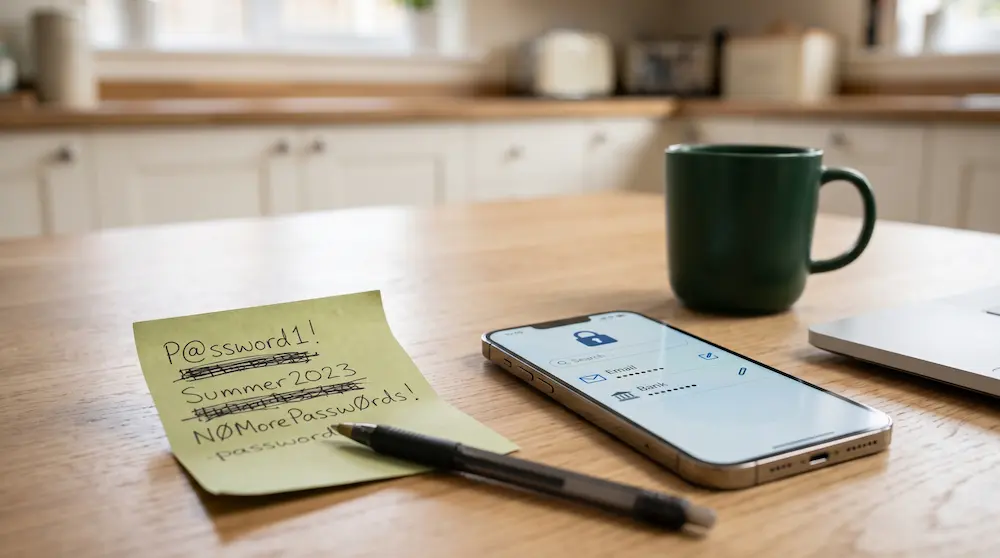
It’s a fair question, and the honest answer is that it’s much safer than the alternatives. The alternatives are usually the same password everywhere, a notebook in the kitchen drawer, or a list in your phone’s notes app.
The main thing is to make your main password strong and turn on two-step verification for the password manager itself. Do those two things and it’s very hard for anyone to get in.
Which password manager should I use?
You’ve got two sensible routes.
The one you already have (free)
- iPhone, iPad and Mac: Apple’s Passwords app is built in and syncs across your Apple devices.
- Android phones and Chrome: Google Password Manager is built into Android and the Chrome browser.
If you mostly use one family of devices, these are perfectly good and you don’t need to install anything.
A separate app (free or paid)
If you’ve got a mix, say an iPhone and a Windows laptop, a separate app that works everywhere is usually easier. Bitwarden has a good free version. 1Password and Dashlane are paid but polished, with family plans that let you share things like the Netflix login.
How to set one up in 15 minutes
- Pick one from above. If in doubt, start with the one already on your phone.
- Choose a strong main password. The NCSC suggests three random words, like teapot-river-velvet, which is long, hard to guess and easy to remember.
- Turn on two-step verification for it.
- Start with your most important accounts: email first (because it can reset everything else), then your bank, Amazon and social media. Change each to a new password the manager creates.
- Do the rest as you go. Every time you log in somewhere, let it save or update the password.
Don’t try to do all 80 accounts in one evening. Nobody needs that.
What about passkeys?
You might see websites offering to set up a passkey. It’s a newer way to log in that uses your phone’s fingerprint or face unlock instead of a password, and it can’t be phished. Your password manager can store passkeys too. If a site offers one, it’s worth saying yes.
Frequently asked questions
What happens if I forget my main password?
With most password managers, if you forget it and haven’t set up a recovery option, you lose access. That’s the price of nobody else being able to get in. Set up recovery when you first install it, and write the main password down somewhere safe at home if you need to.
Can password managers be hacked?
The companies themselves can be targeted, but your passwords are encrypted with your main password, so stolen data is useless without it. That’s why a strong main password matters so much.
Are the passwords saved in my browser safe?
Are the passwords saved in my browser safe?
Google’s and Apple’s built-in options are real password managers and are fine for most people. Just make sure your phone or computer has a passcode or PIN on it.
Is it OK to write passwords down?
A notebook kept safely at home is better than reusing one password everywhere. A password manager is better than both.
Want a hand setting it up?
Moving all your passwords over can feel like a big job. If you’re in Milton Keynes, I can set up a password manager on your phone and computer, sort your most important accounts and show you how it works, at home or over a remote session.