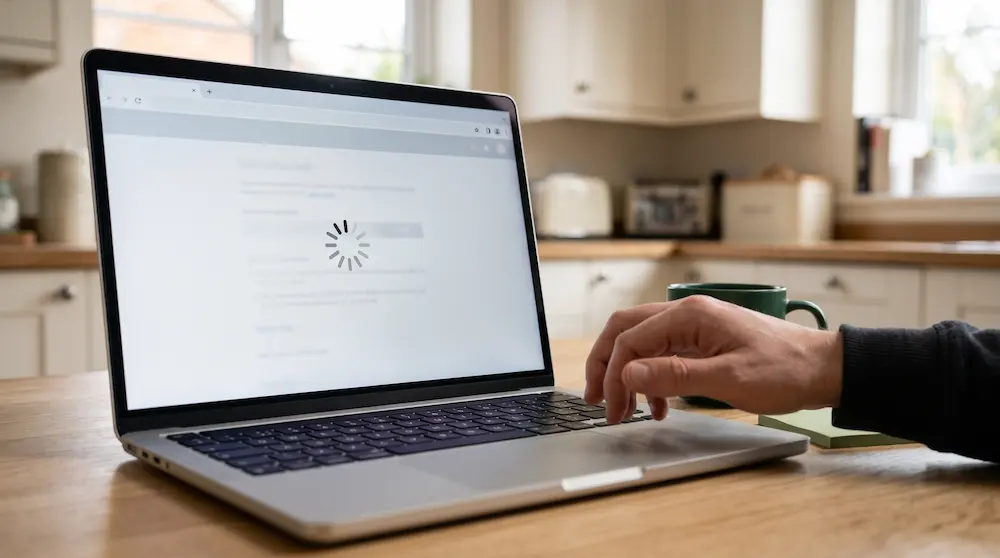
Most slow laptops are slow for a handful of fixable reasons: too many programs starting up with Windows, a nearly full hard drive, waiting updates, or it simply hasn’t been properly restarted in weeks. Work through the six fixes below in order. They’re free, take about half an hour in total, and won’t delete any of your files.
These steps are for Windows 11. Most work the same way on Windows 10.
1. Restart it properly
Sounds too simple, I know. But on many Windows laptops, “Shut down” doesn’t fully clear things out, because of a feature called Fast Startup. A Restart does.
Click Start, then the power button, then Restart. If you can’t remember the last time you did this, start here.
2. Stop programs launching at startup
Lots of programs quietly set themselves to start every time you switch on: Spotify, Teams, printer software, the trial antivirus that came with the laptop. Each one slows things down a bit.
- Right-click the Start button and choose Task Manager.
- Click Startup apps on the left.
- Look at anything marked “High” impact. If you don’t need it the second your laptop turns on, right-click it and choose Disable.
This doesn’t uninstall anything. The program still works when you open it yourself.
3. Free up some space
Windows gets sluggish when the drive is nearly full. Aim to keep at least 15 to 20% free.
- Go to Settings > System > Storage to see what’s using the space.
- Turn on Storage Sense, which clears temporary files and empties the recycle bin for you.
- Click Cleanup recommendations for a list of big files and apps you’ve not used in ages.
The usual culprits are the Downloads folder and years of phone photos. Move photos to OneDrive, Google Photos or an external drive.
4. Install waiting updates
Go to Settings > Windows Update and click Check for updates. Install everything, then restart. Updates often fix bugs that slow things down, and they keep you safe too.
One thing to know: Windows 10 stopped getting security updates in October 2025. If your laptop is still on Windows 10, it’s worth looking at whether it can move to Windows 11.
5. Tame your web browser
If the slowness is mostly in Chrome or Edge, the browser’s probably the problem rather than the laptop. Every open tab uses memory, and 30 tabs is a lot of memory.
Close tabs you don’t need, and remove extensions you don’t recognise (in Chrome, go to the three dots, then Extensions). Dodgy extensions can slow things down and some are outright malicious.
6. Check for viruses
Open Windows Security from the Start menu, click Virus & threat protection, then Scan options, and run a Full scan. It takes a while, so start it before you put the kettle on.
You don’t need to pay for extra antivirus for most home use. The built-in Windows Security does a good job.
Still slow? It might be the hardware
If you’ve done all six and it’s still painful, the laptop itself might be the bottleneck. Two common ones:
- An old-style hard drive. If your laptop has a spinning hard drive instead of an SSD (solid-state drive), swapping it for an SSD is the single biggest speed boost you can get. It can make a five-year-old laptop feel new.
- Not enough memory (RAM). 4GB isn’t enough for Windows 11 in 2026. 8GB is the comfortable minimum for everyday use.
Both upgrades usually cost far less than a new laptop.
Frequently asked questions
Why has my laptop suddenly got slow?
A sudden slowdown is often a big update running in the background, a program that’s started misbehaving, or a nearly full drive. Restart it, check Task Manager to see what’s using the most CPU or memory, and check your free space.
Will a factory reset speed up my laptop?
Often, yes, but it wipes everything. Back up your files first, and try the fixes above before going that far.
Is it worth upgrading an old laptop or should I buy a new one?
If it’s under six or seven years old, an SSD and more RAM are usually worth doing. Older than that, or if it can’t run Windows 11, putting the money towards a replacement often makes more sense.
How do I know if my laptop has an SSD?
Open Task Manager, click Performance, then click on your disk. It’ll say SSD or HDD in the top right.
Rather someone else sorted it?
If you’re in Milton Keynes and your laptop’s still crawling, I can take a look at home or remotely. A health check and tune-up is £45 remote or £65 at home, and I’ll tell you honestly whether it’s worth upgrading or not.